
Class Attendance
A short picture of how a faculty takes lecture attendance in LAINNOV — and how it helps the registry, heads of department and lecturers. Screenshots use a made-up faculty, Faculty of Computing and Information Systems.
This is the page to share with a school or university. The step-by-step manual is the Class Attendance guide. Privacy and terms for student data are at Privacy and Terms.
What it does for a faculty
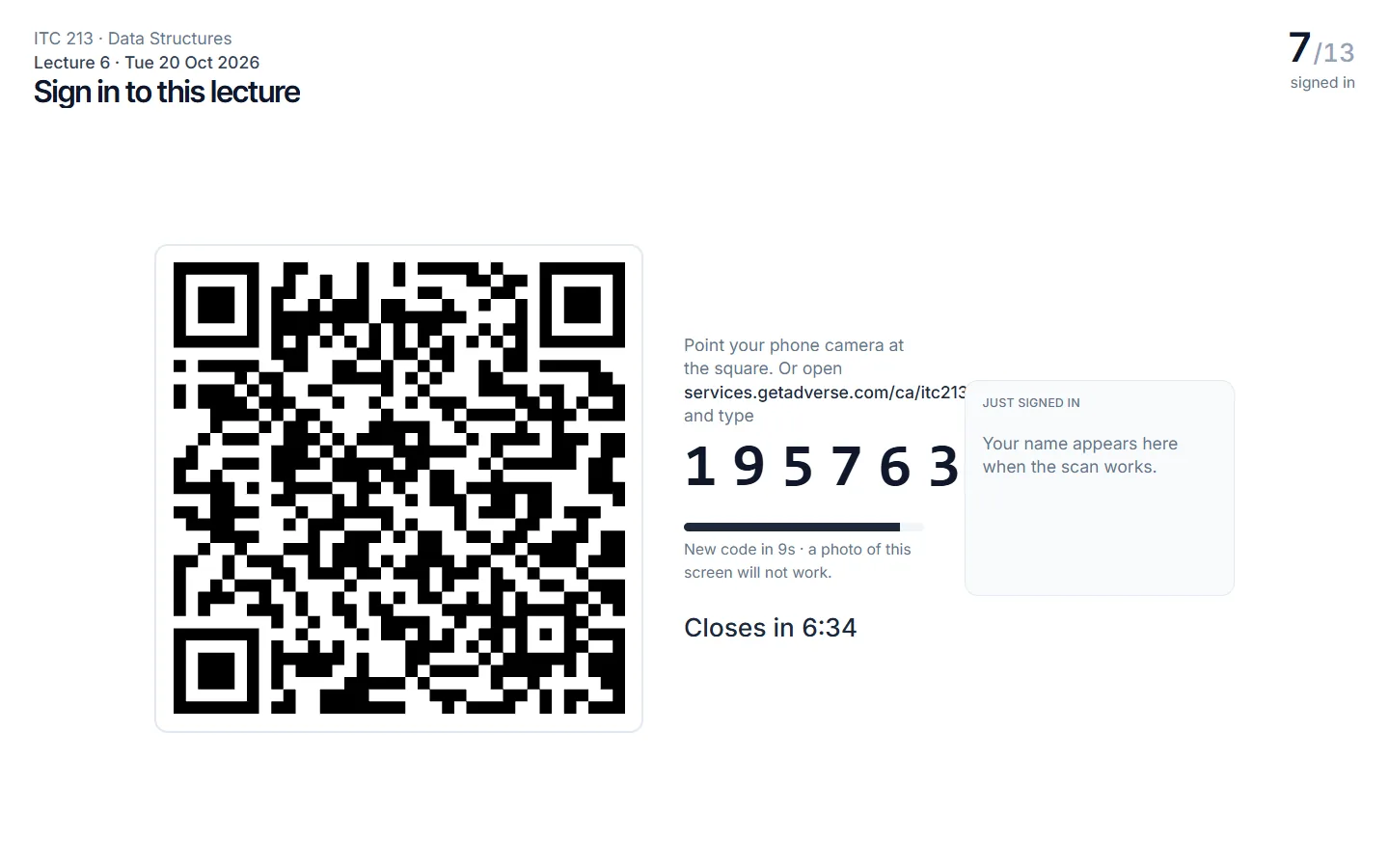
- A real register in the room. Students sign in on their own phones. One phone cannot stay linked to two people. Proxy sign-in shows as a flag for the lecturer.
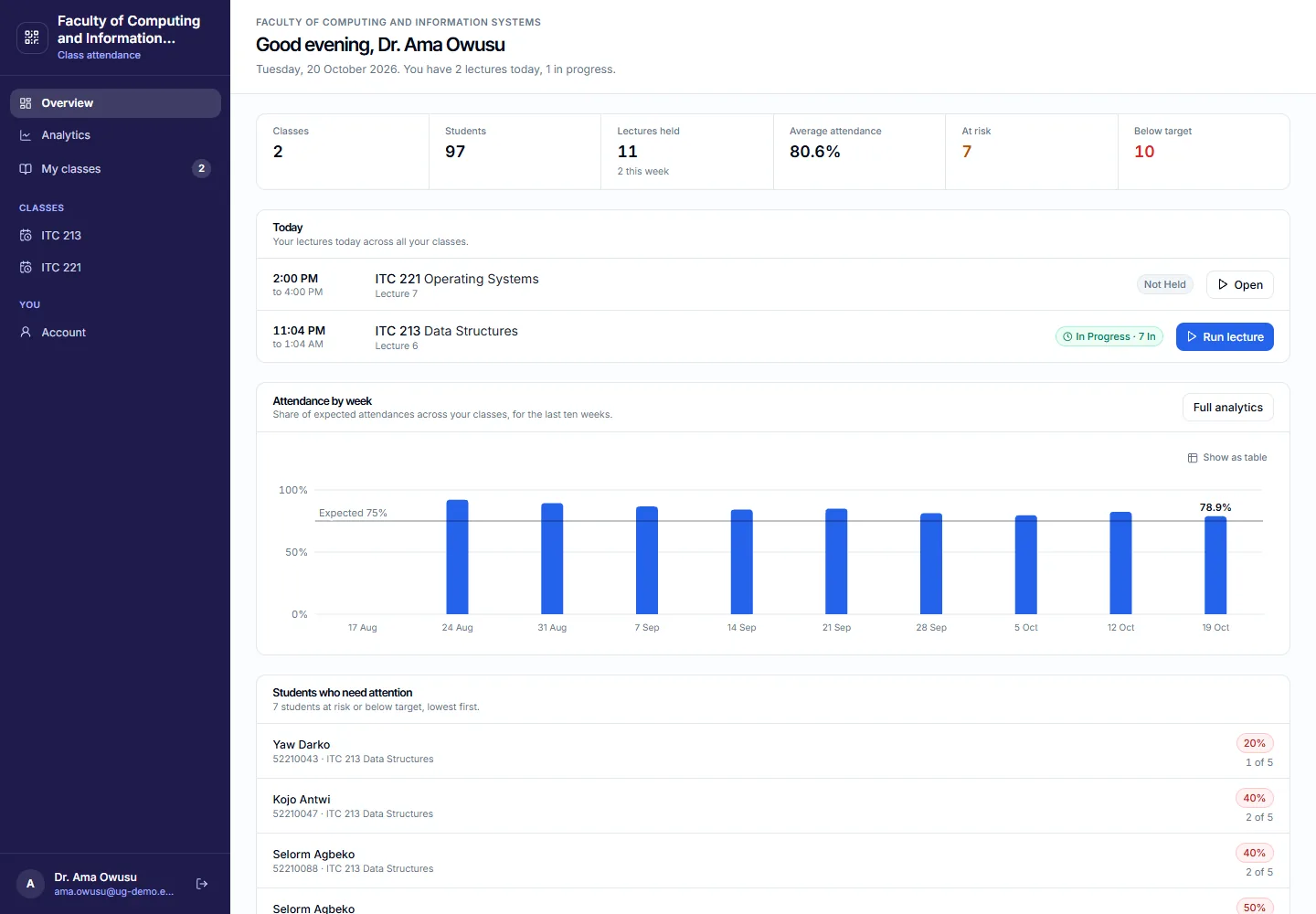
- A standing for every student. Present, late, excused or absent on each counted lecture — and whether they are on track, at risk or below the expected level.
- Warnings you choose to send. Email from the institution’s own domain, and text if the lecturer is allowed. Nothing leaves until someone presses Send.
- An official register you can show later. A dated snapshot, a PDF, and a code so a paper copy can be checked.
- The institution stays in control of the data. The faculty is the data controller. LAINNOV is the processor. Student data is not sold, and location never blocks a sign-in.
Who uses it
| Who | What they do |
|---|---|
| The faculty (the LAINNOV account) | Names the faculty, creates departments and programmes, imports the student register, invites lecturers, creates classes. |
| Department administrators | Run their department only — its programmes, lecturers, classes and students. |
| Lecturers | Sign in at the faculty link (their own email and password). They take attendance on the classes assigned to them. |
| Students | No portal. They scan the code on the classroom screen, or type the six digits on the class link. |
The faculty workspace
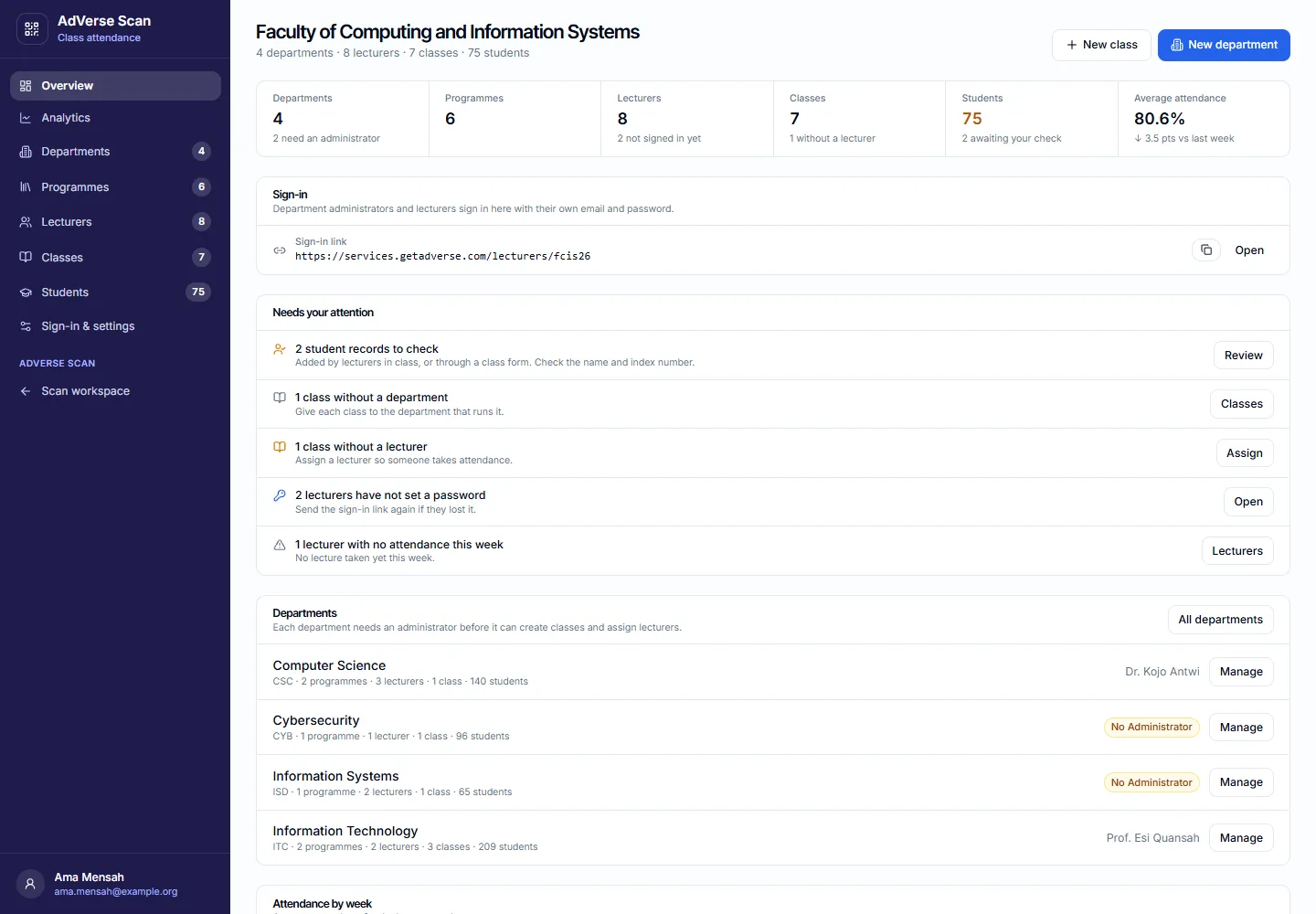
The faculty (or a department administrator) sees the whole picture: departments, programmes, the lecturer list, every class, and the student register. Classes that still need a lecturer, and students below target, are flagged so they can be dealt with.
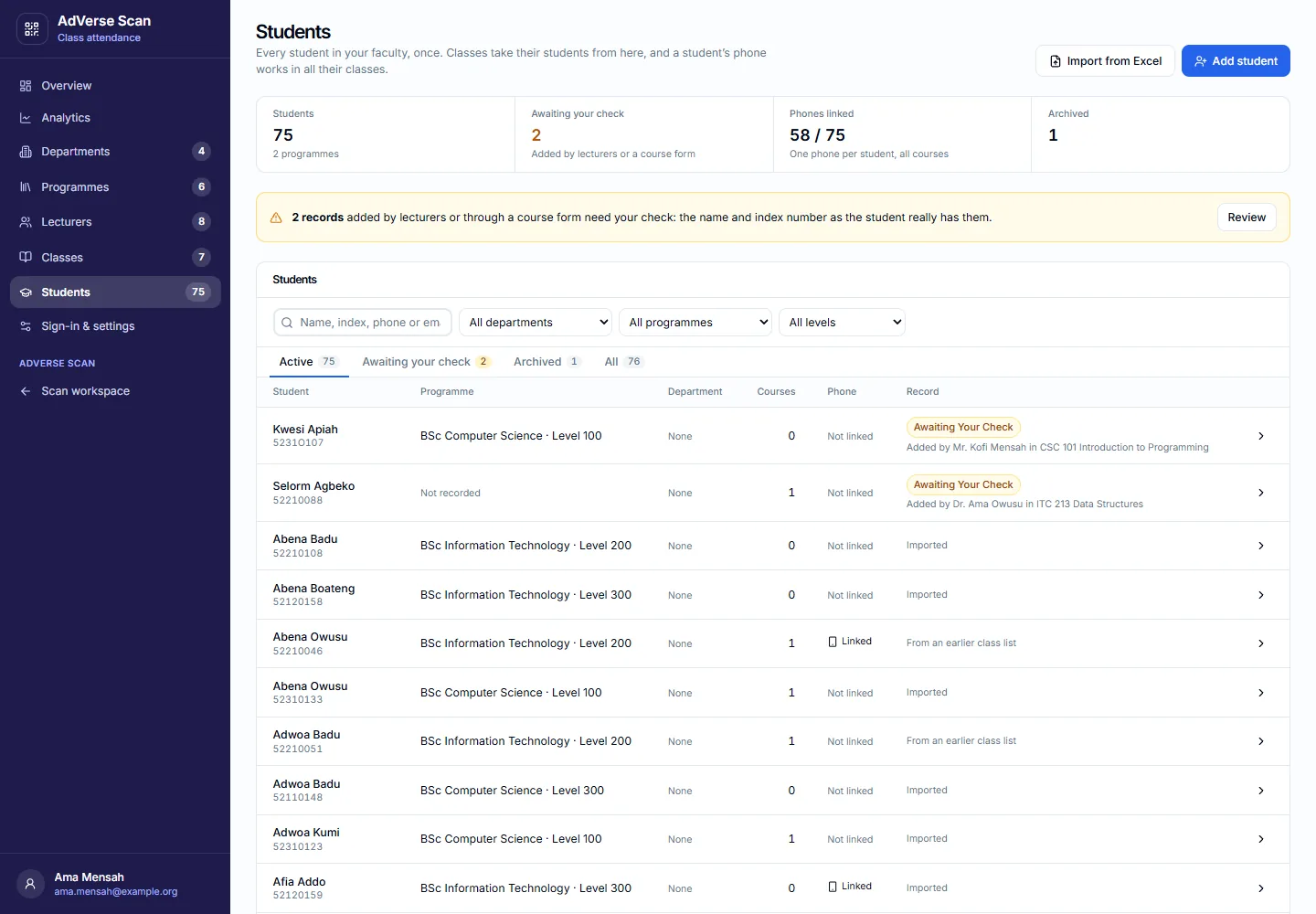
A student is one record for the whole faculty. Change of level is an edit (or a new import). A student who has completed, withdrawn or been suspended is archived with a reason; their marks stay on file. A change of lecturer is done on the class — the list and the marks stay.
In the lecture hall
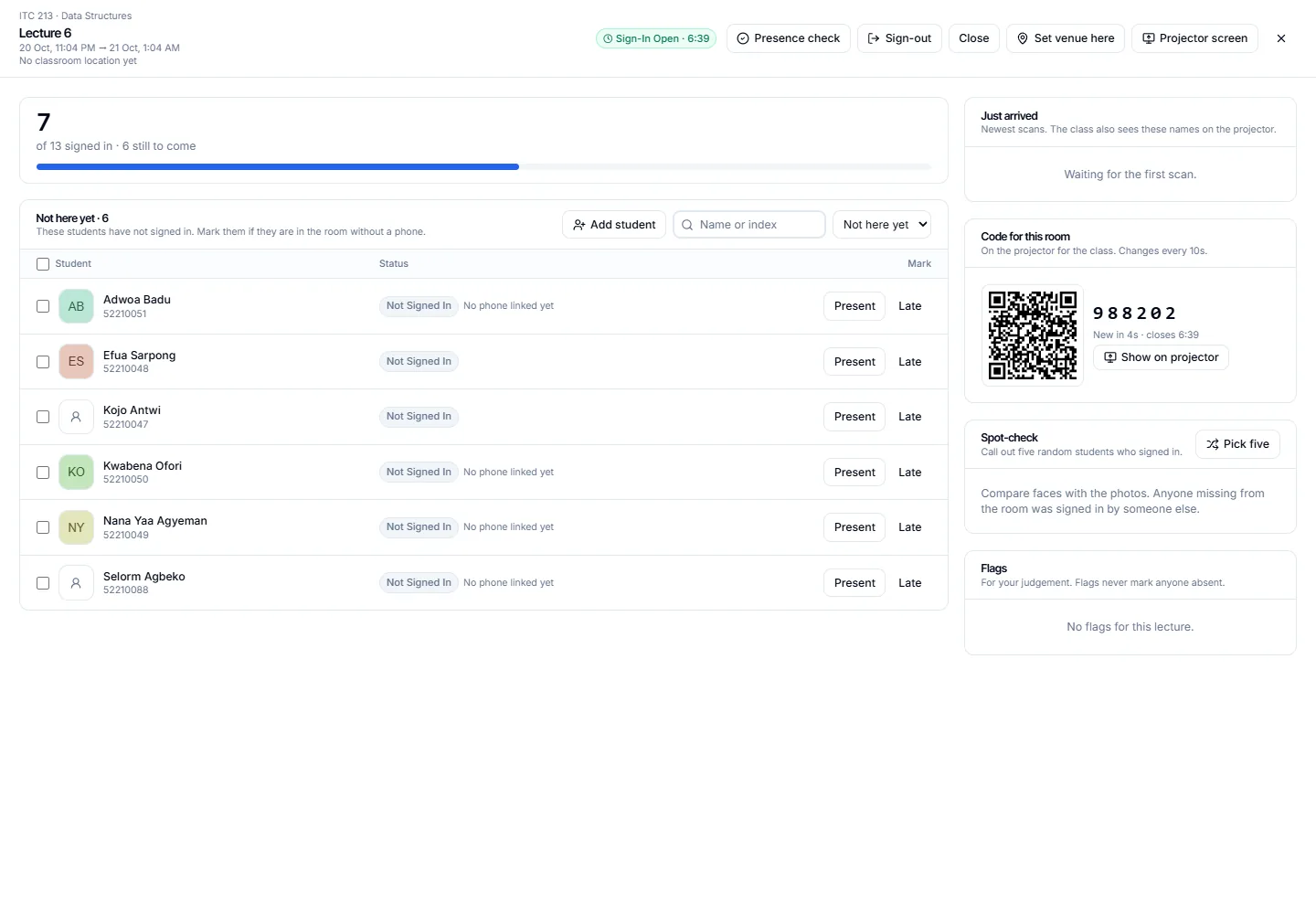
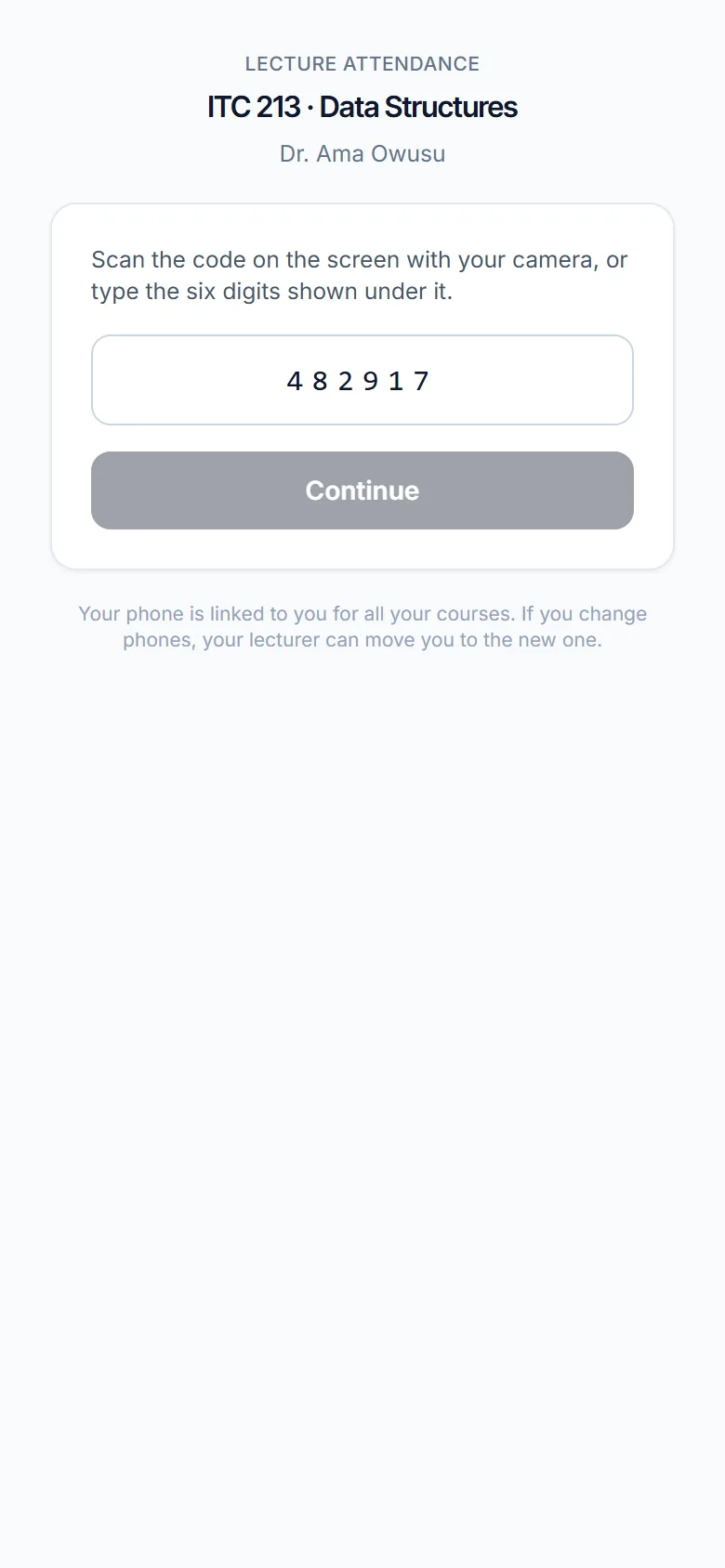
After the lecture
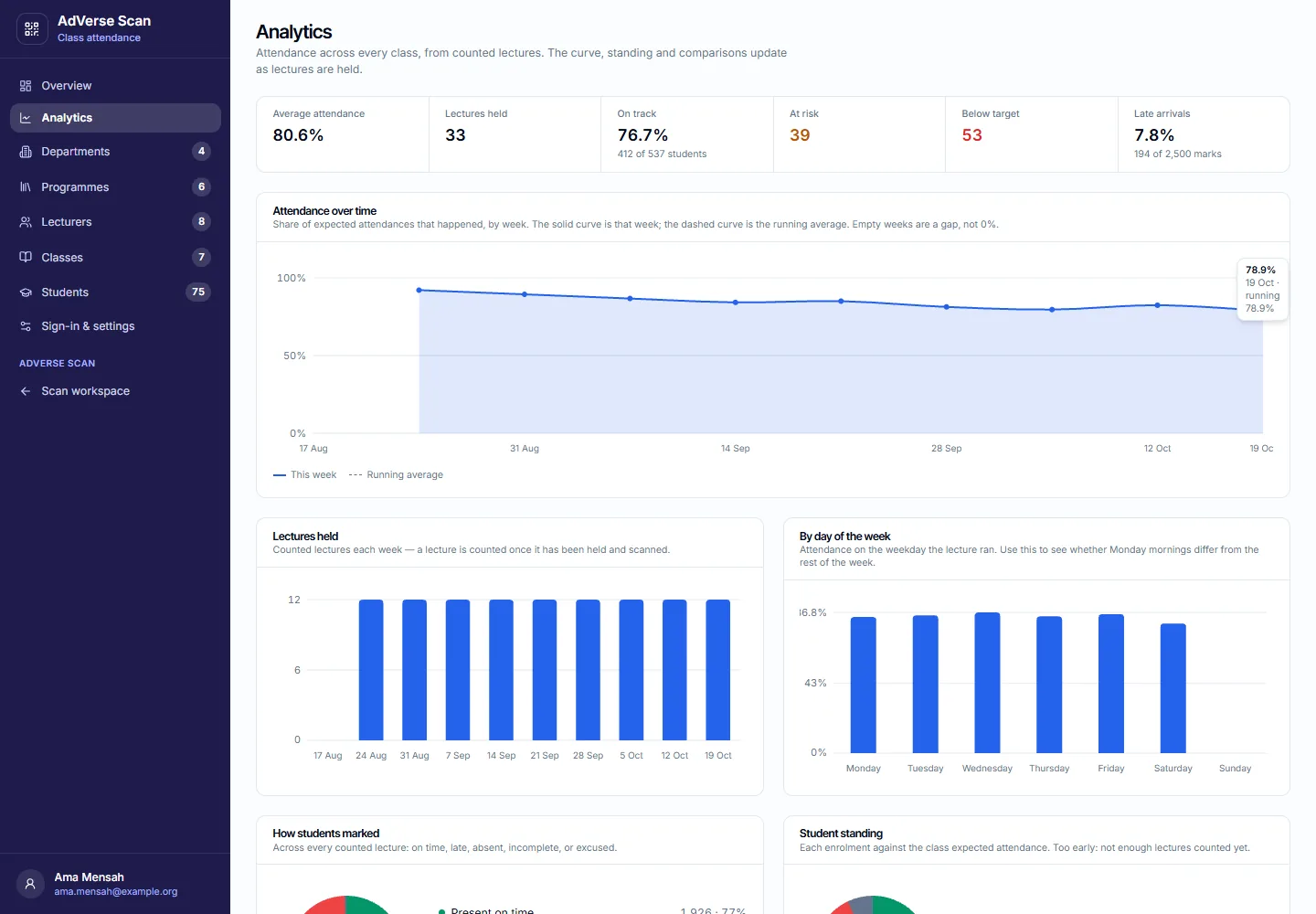
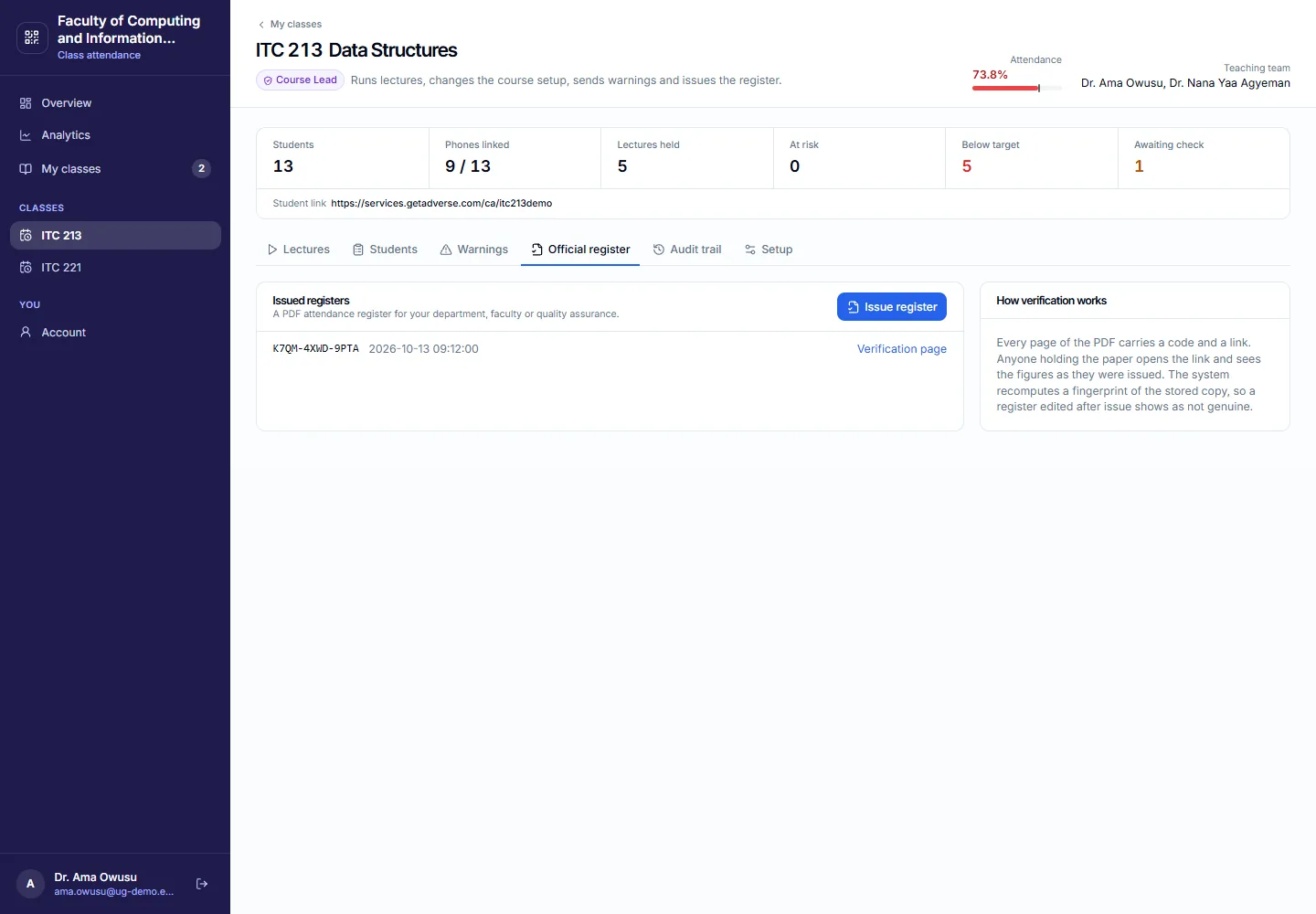
Warnings go to students the lecturer has checked. Expected attendance and the classroom location are set by the course lead, not by the department when the class is created.
Student data
The institution decides who is on the register and how attendance is used. LAINNOV stores the records to run the service. We do not sell student data, we do not use attendance for advertising, and we do not run automated facial recognition. Location, if the lecturer turns it on, is a flag only.
Read the Privacy Notice and Terms before you import a register. A signed data-processing addendum is available on request.
What to do next
- Share this page or the PDF with the registry, the faculty office and heads of department.
- Read the full guide when you are ready to set the faculty up (about a week of first-time work: departments, programmes, register, lecturers, then classes).
- Questions: support@lainnov.com.